Monitor and debug Ray workloads with fully persisted Cluster and Actor dashboards on Anyscale
Today we’re excited to announce the Anyscale Cluster and Actor Dashboards, completing the rollout of the fully persisted Ray Dashboard on Anyscale. Together with the Train, Data, and Task dashboards, this release provides end-to-end monitoring, debugging, and optimization tools for Ray workloads, from infrastructure-level monitoring to workload-level insights, all persisted for historical analysis after the workload has completed.
Dashboard | Focus | What You Can Do |
Train | Model training | Monitor progress, errors, and profiling data |
Data | Data pipelines | Identify bottlenecks via operator metrics |
Task | Distributed workloads | Analyze millions of distributed tasks |
Actor | Distributed stateful workloads | Track actor lifecycles and performance |
Cluster | Infrastructure | Monitor node health and utilization |
LinkIntroducing Cluster and Actor Dashboards
The Ray dashboard has long been an essential tool for understanding the current state of distributed workloads – what your application is doing (tasks, actors) and how it’s running (nodes, hardware utilization). However, the Ray dashboard has important limitations:
Ephemeral data: Once a Ray cluster shut down, all dashboard data was lost. Without access to that data, post-mortem investigations are difficult and often require reproducing the issue from scratch, an expensive and time-consuming process for long-running or large-scale jobs.
Limited scale / Short retention: To avoid impacting running workloads, the Ray cluster dashboard stored only a subset of data. Dead node data is kept for only 10 minutes, and only the most recent 100,000 killed actors are retained.
As workloads scale to hundreds of nodes and millions of tasks, these limitations become insufficient for modern AI and data workloads.
The new Anyscale Cluster and Actor Dashboards address these limitations as well as improve the overall observability experience for Ray workloads. Powered by the Ray Event Export Framework, these dashboards stream and persist cluster events off-cluster into Anyscale-managed storage and query engines for long-term analysis. This allows developers to debug failures, analyze performance, and compare workloads even after clusters have terminated, without maintaining their own infrastructure.
LinkKey Improvements include:
Full persistence – Data remains available for post-mortem debugging even after cluster shutdown.
Scalability – Designed to handle large-scale Ray deployments with thousands of nodes and millions of actors.
Enhanced UX – Faster filtering, search, and aggregation, plus new visualizations and historical information to understand cluster topology and actor lifecycles over time.
Unified and interactive – Seamless navigation between workload dashboards (Train, Data) and system dashboards (Cluster, Task, Actor), providing a unified debugging journey from high-level overview to node-level details.
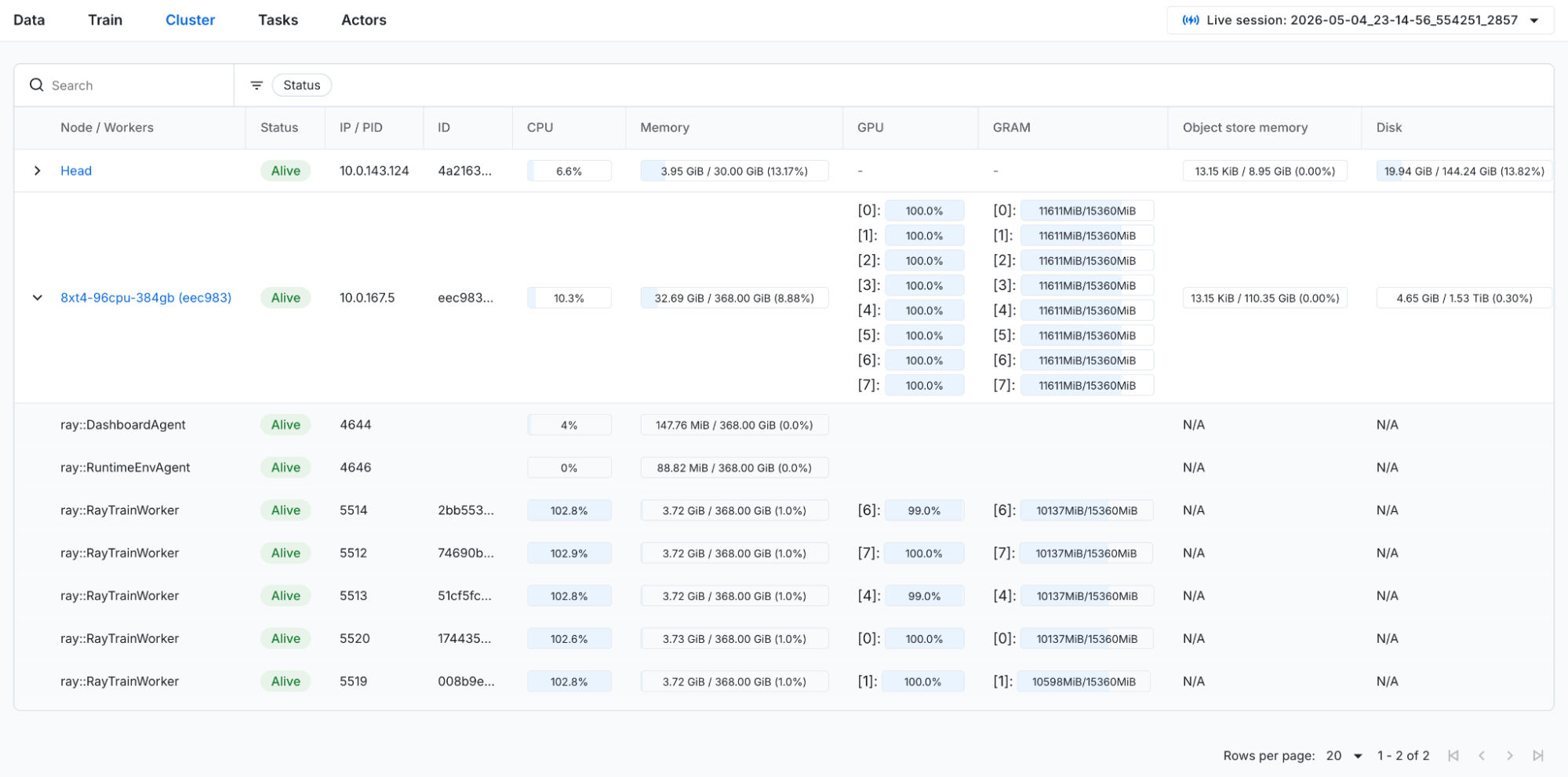 Figure 1: Cluster dashboard overview page. Shows a list of all the cluster nodes, with each row expandable to show the workers on the node.
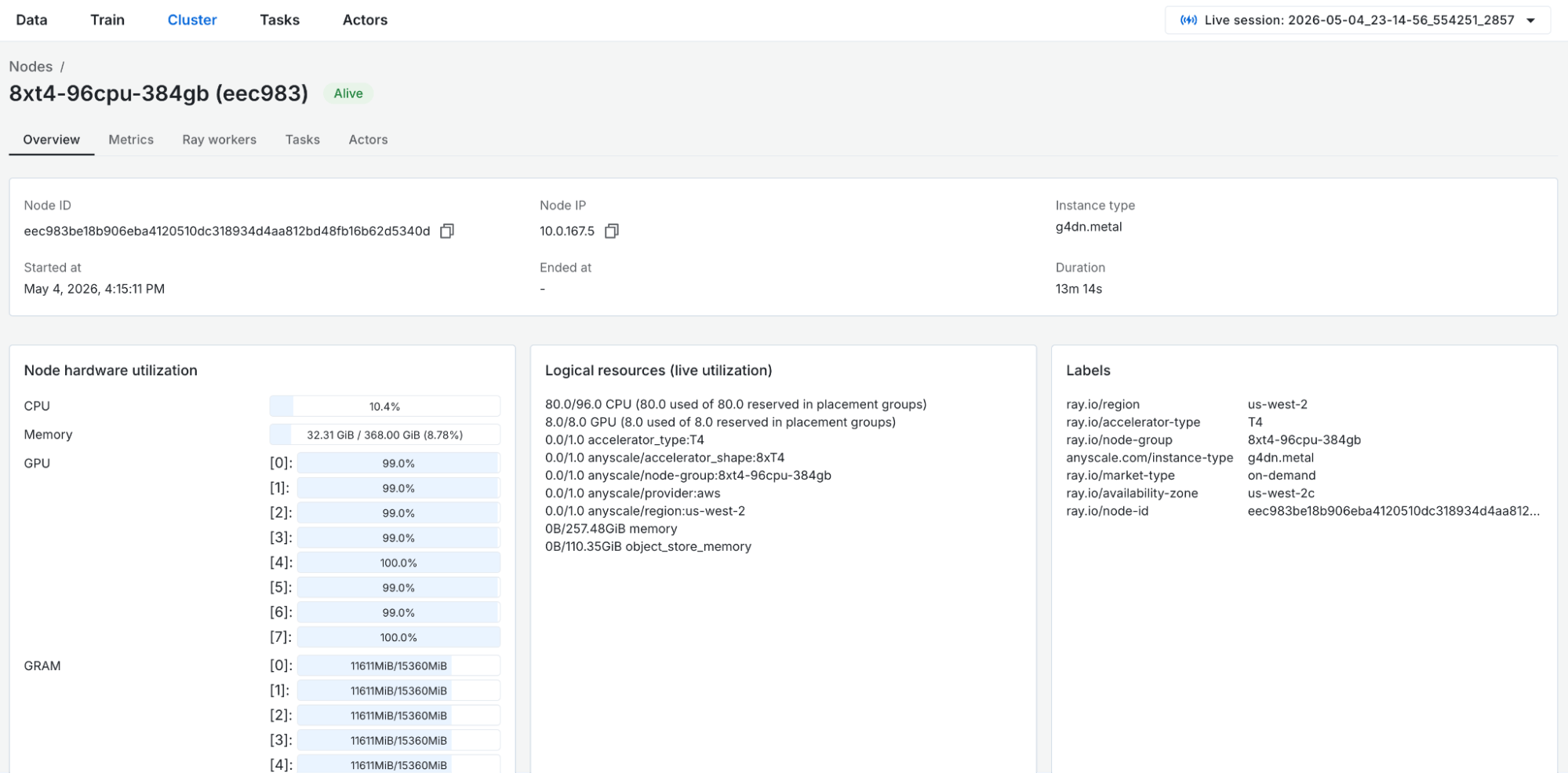 Figure 2: Cluster dashboard node detail page. A zoomed in view of a single node, with more detailed metadata and metrics, task, and actor events scoped to the node.
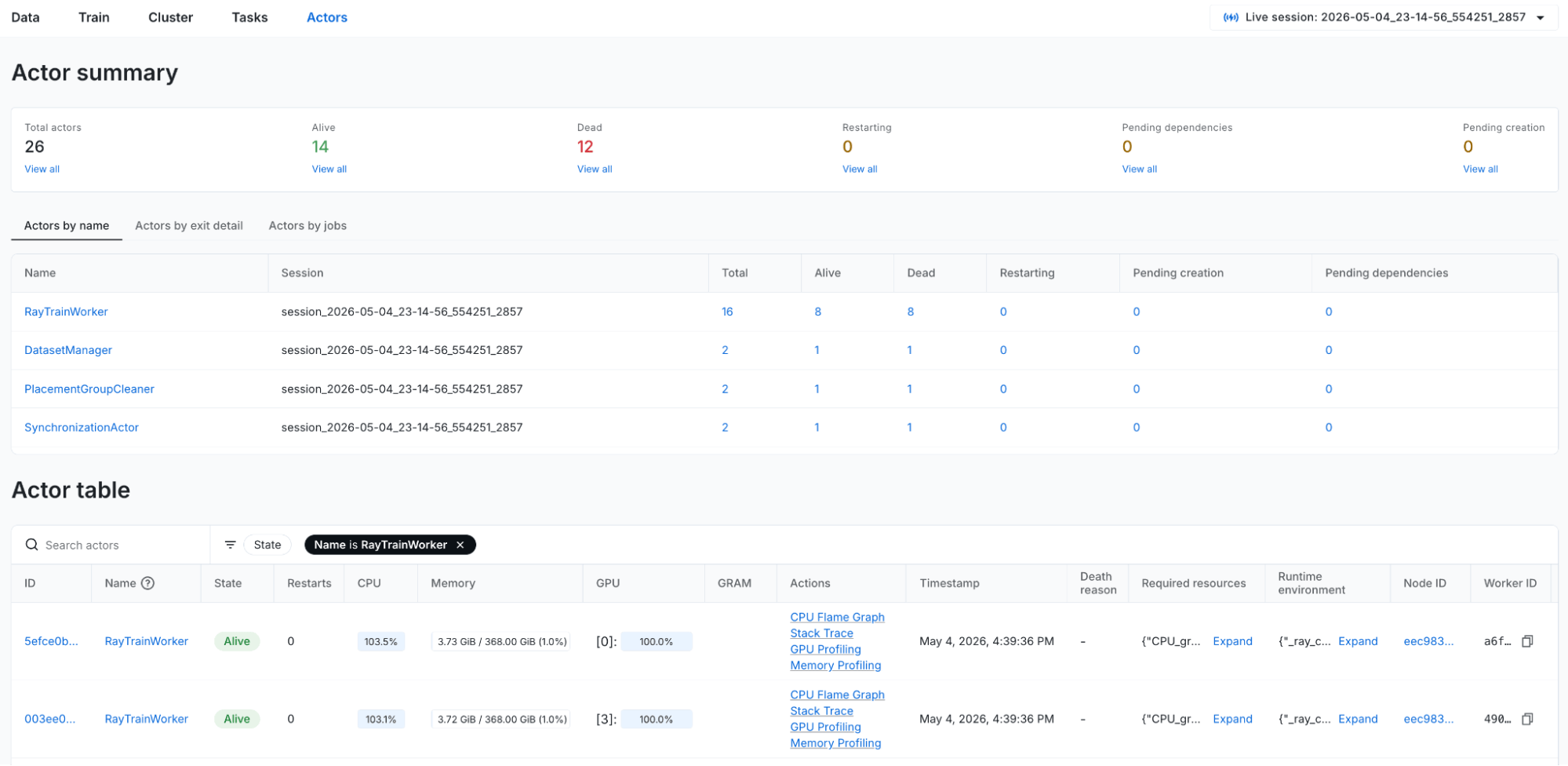 Figure 3: Actor dashboard overview page. Provides a high level view of the actors in each state, aggregate views, and a table listing all actors.
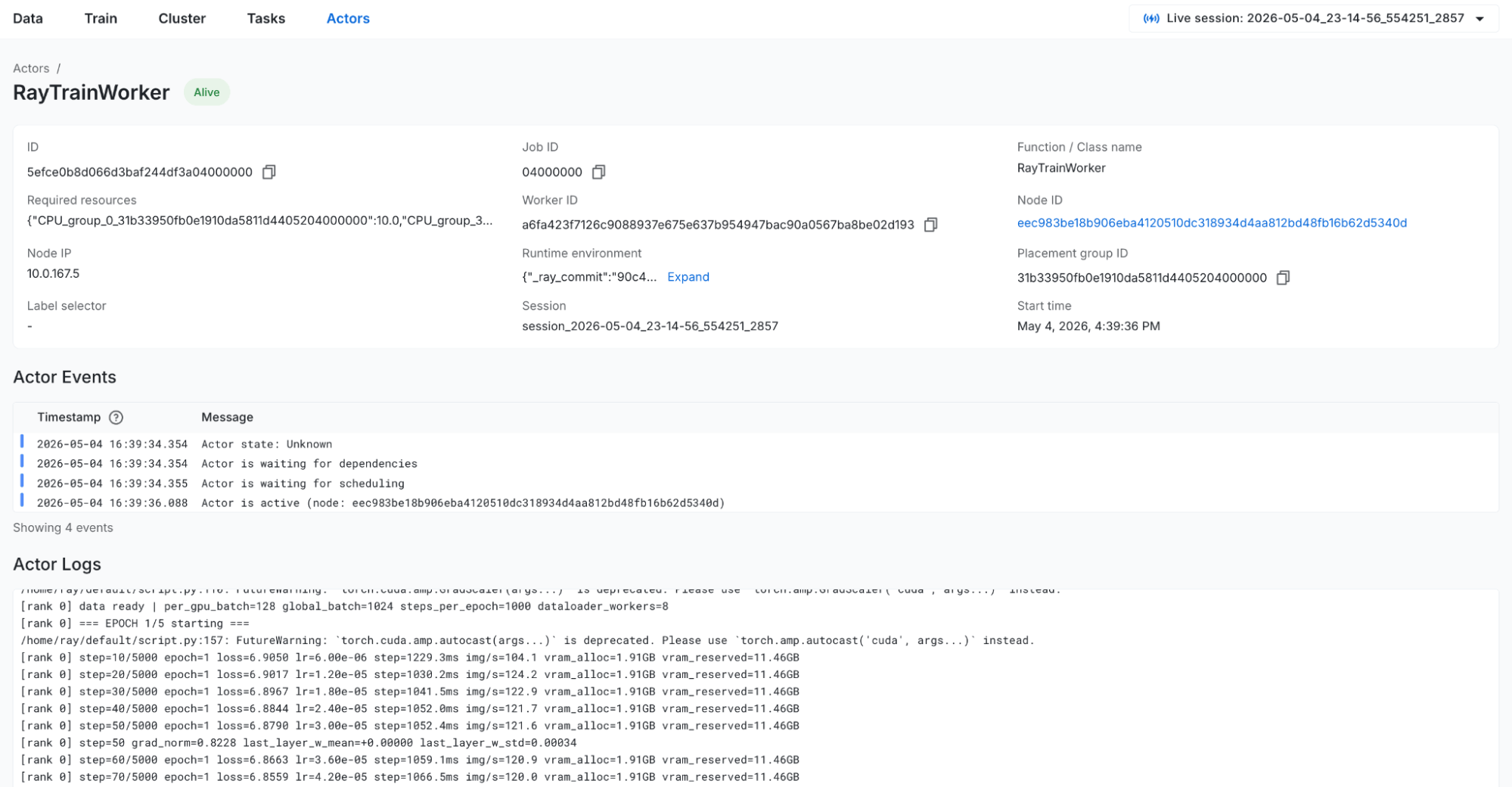 Figure 4: Actor detail page. Show metadata, logs, and tasks from a given actor.
See the Anyscale docs for more details on the Cluster dashboard and the Actor dashboard.
LinkDebugging a Ray Data embeddings pipeline end to end
Let's walk through a debugging scenario to see how the workload-level Data and Train dashboards, the system-level Cluster dashboard, and the core-level Task and Actor dashboards work together in practice. For this scenario, a Ray Data pipeline takes far longer than expected to finish, and we use the persisted dashboards to figure out why – after the job has already completed.
Ray Data simplifies distributed data processing by providing a high-level dataset API built on top of Ray. Developers typically start debugging in the Data dashboard, which provides job-level context before drilling down into system-level details.
LinkThe Pipeline
We're building a two-stage audio embedding pipeline with Ray Data. The first stage uses librosa on CPU to convert raw audio clips into spectrograms, visual representations of sound that show how frequencies change over time. When working with audio data at scale, the raw audio must be decoded, resampled to a consistent sample rate, and transformed into a format suitable for ML models. This spectrogram conversion is computationally expensive (CPU-heavy) and is the standard preprocessing step for audio ML – similar to how images need resizing and normalization before being fed to a vision model. The second stage uses ViT-B/16 on GPU to extract embeddings from these spectrogram images, which can be used for downstream tasks like similarity search, clustering, and genre classification.
ds = ray.data.from_huggingface(hf_dataset)  # lewtun/music_genres
ds = ds.limit(19_000)
ds = ds.repartition(128)
ds = ds.random_shuffle()

# Stage 1: mel spectrogram extraction on CPU (8 actors, librosa + mel filterbank)
ds = ds.map_batches(SpectrogramExtractor, batch_size=16,
                    compute=ray.data.ActorPoolStrategy(size=8))

# Stage 2: ViT-B/16 embedding on GPU (1 actor, ~330 MB model)
ds = ds.map_batches(SpectrogramViTEmbedder, batch_size=64,
                    compute=ray.data.ActorPoolStrategy(size=1), num_gpus=1)
ds.write_parquet("/mnt/cluster_storage/audio_demo/output/")
The cluster has 1 CPU worker node (m5.2xlarge: 8 CPU, 32 GB RAM) and 1 GPU worker node (g4dn.xlarge: 4 CPU, 16 GB RAM, 1× T4). We set the spectrogram extraction stage’s actor concurrency to 8 to keep throughput high on the CPU-heavy work.
We submit the job with 19,000 music clips. Based on existing benchmarks, we expect it to finish in about 10 minutes. Instead, it takes over an hour. The job succeeded with all embeddings written, yet something clearly went wrong. What happened?
LinkStep 1: Data Dashboard - When did the pipeline actually produce output?
We start in the Data dashboard for the completed job, which provides a Ray library-level overview of the workload and sets the context before drilling further into system and core-level dashboards. Because the Anyscale dashboards persist data beyond cluster lifetime, all metrics are still available even though the job has finished.
Looking at the operator metrics over time, the pattern is immediately suspicious:
MapBatches(SpectrogramExtractor):active throughput from the start, processing audio clips steadily throughout the run.MapBatches(SpectrogramViTEmbedder):0 output rows for over an hour, then a sudden burst of activity in the last five minutes. Input queue size steadily increased until the last five minutes. All the embeddings were produced right at the end.Write:same pattern - nothing written until the very end.
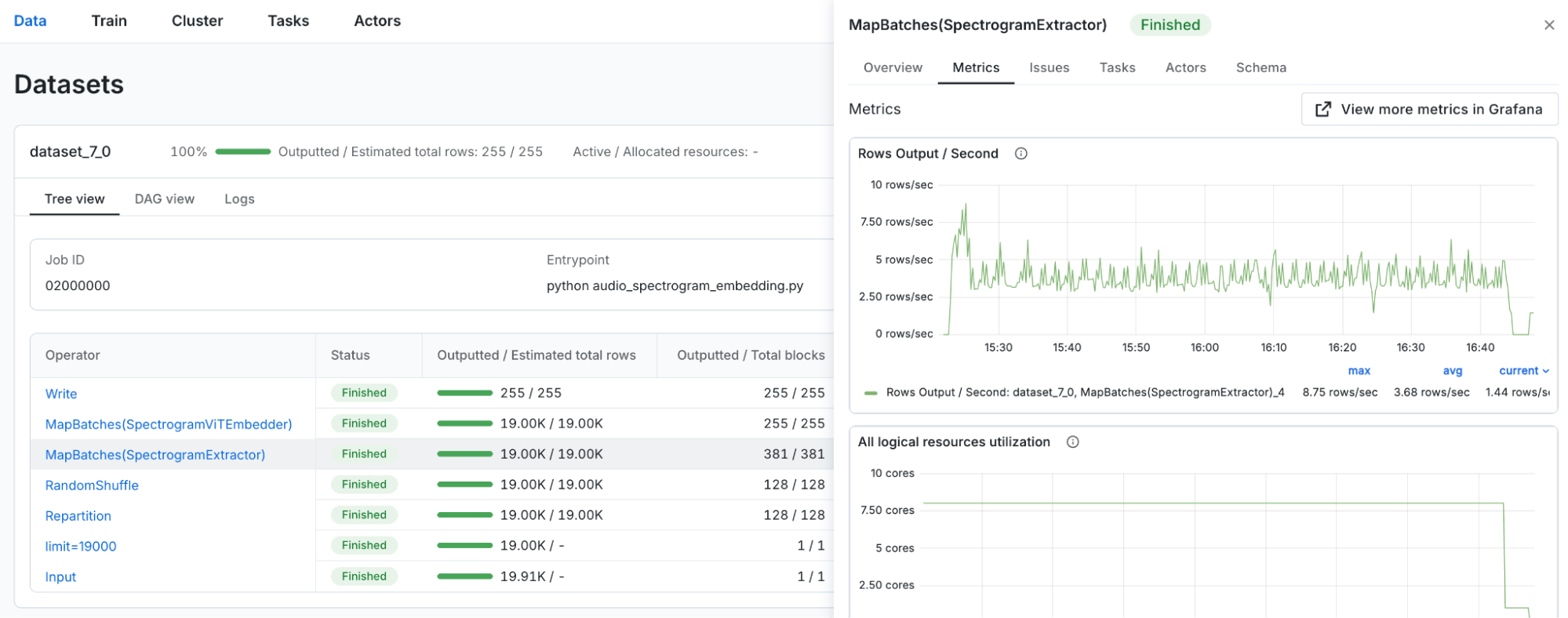 Figure 5: Metrics view scoped to the SpectrogramExtractor data operator in the Data dashboard.
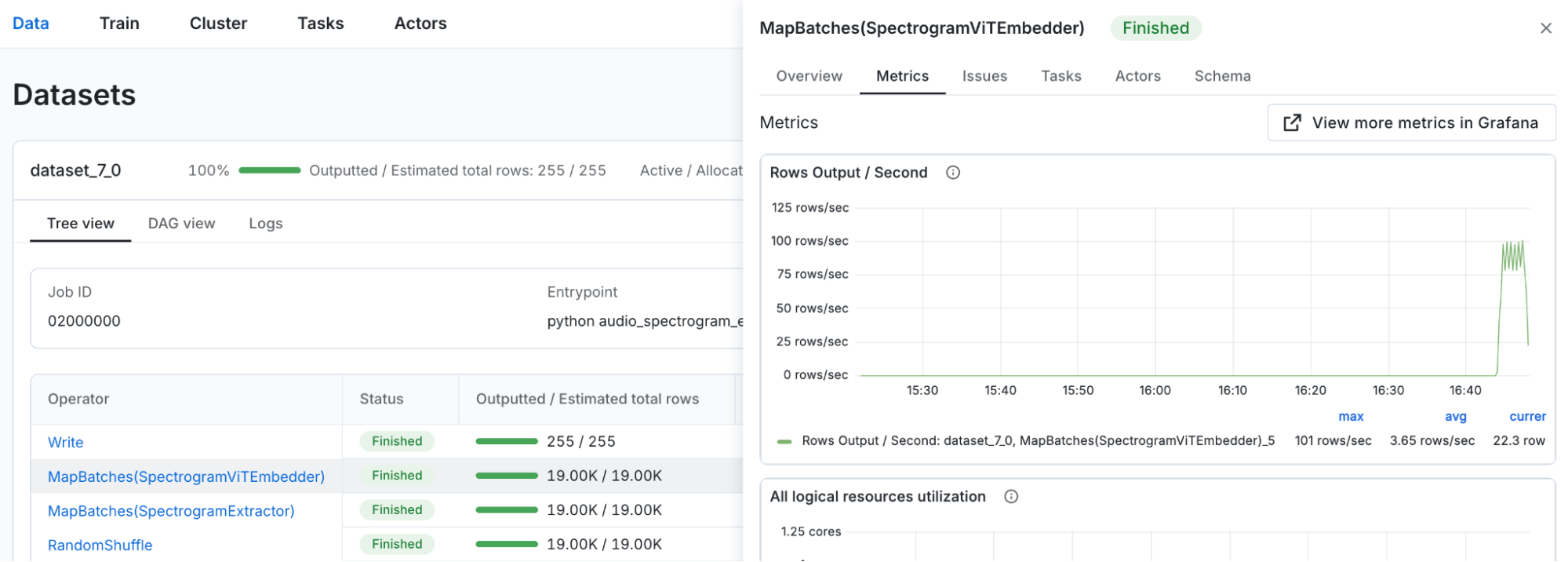 Figure 6: Metrics view scoped to the SpectrogramViTEmbedder data operator in the Data dashboard.
While the spectrogram extraction stage ran for the vast majority of the job, the embedding stage only started producing output at the tail end. This means the GPU, the most expensive resource in the cluster, sat completely idle for over an hour. This translated directly to wasted spend, since the GPU node was running and accruing cost the entire time while contributing nothing until the final few minutes. The embedding stage was starved of resources until the extraction actors released their CPU slots on the GPU node, so the pipeline effectively serialized – first all CPU work, then all GPU work – losing all the pipelining benefits that Ray is designed to provide.
LinkStep 2: Task Dashboard - Why is there no Embedding progress?
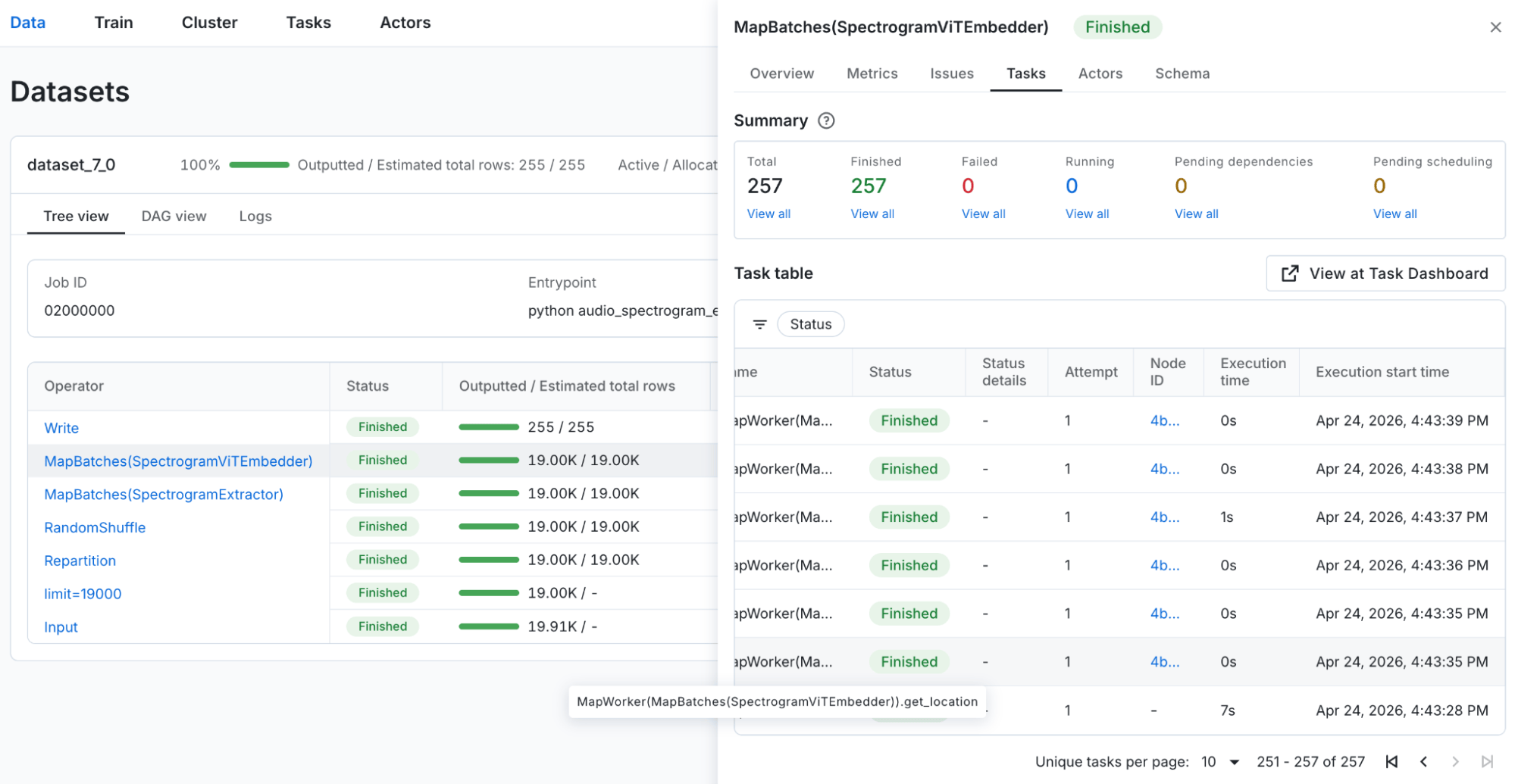 Figure 7: Task view scoped to the SpectrogramViTEmbedder data operator in the Data dashboard.
Looking into the Tasks tab within the Data dashboard for the SpectrogramViTEmbedder operator, we can see that the first embedding task started executing only a few minutes before the job ended, confirming what the metrics showed. No embedding work happened for the majority of the run.
To see aggregate data about the tasks, we go to the Task dashboard and see that:
SpectrogramExtractortasks ran with an average execution time of 20s.SpectrogramViTEmbeddertasks ran with an average execution time less than 1s.
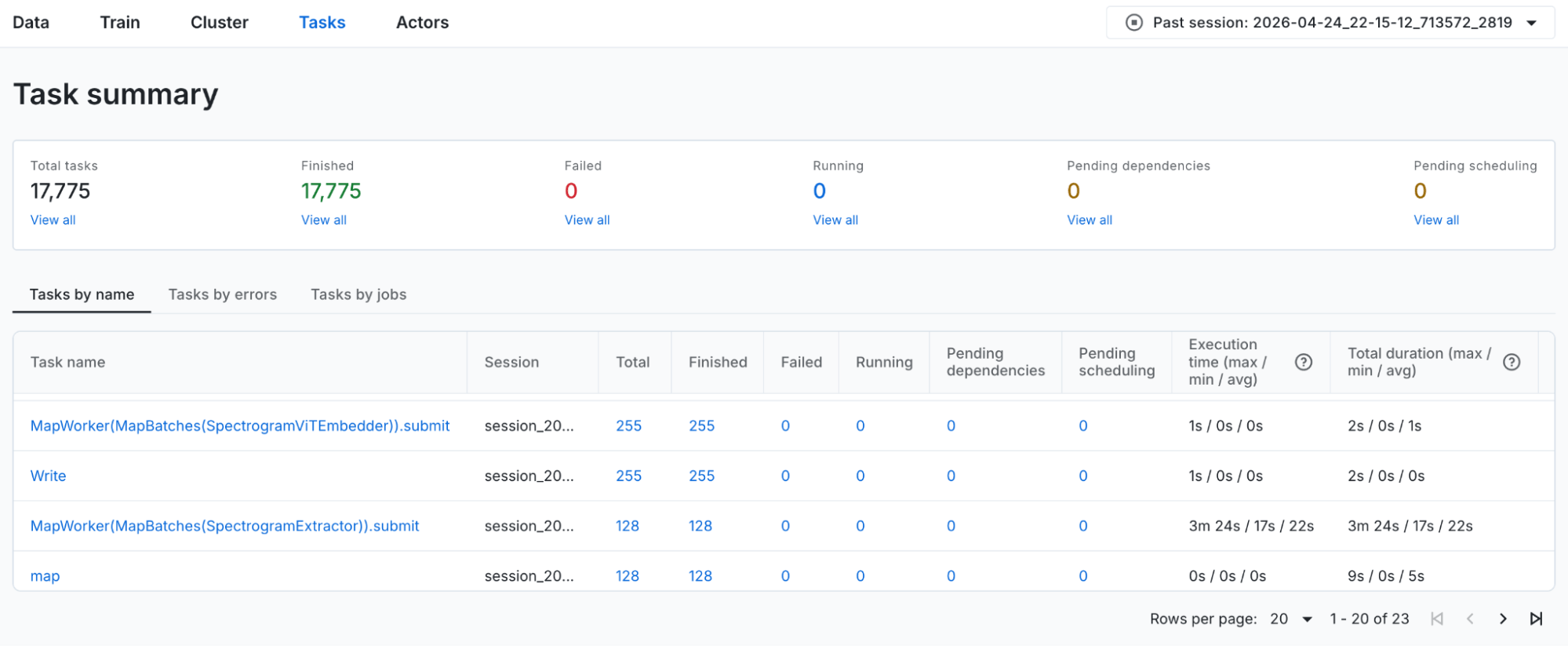 Figure 8: Task aggregate view in the Task dashboard.
The tasks themselves ran without issue once they started, with normal execution times and no errors logged. Since execution wasn't the problem, the bottleneck had to be earlier in the process: the actor hadn't been scheduled yet. Why?
LinkStep 3: Actor Dashboard - Why was the embedding actor delayed?
Our next step takes us to the Actor dashboard, where we can find actors for the SpectrogramViTEmbedder operator. Clicking through to the actor detail page, we see the Actor Events timeline:
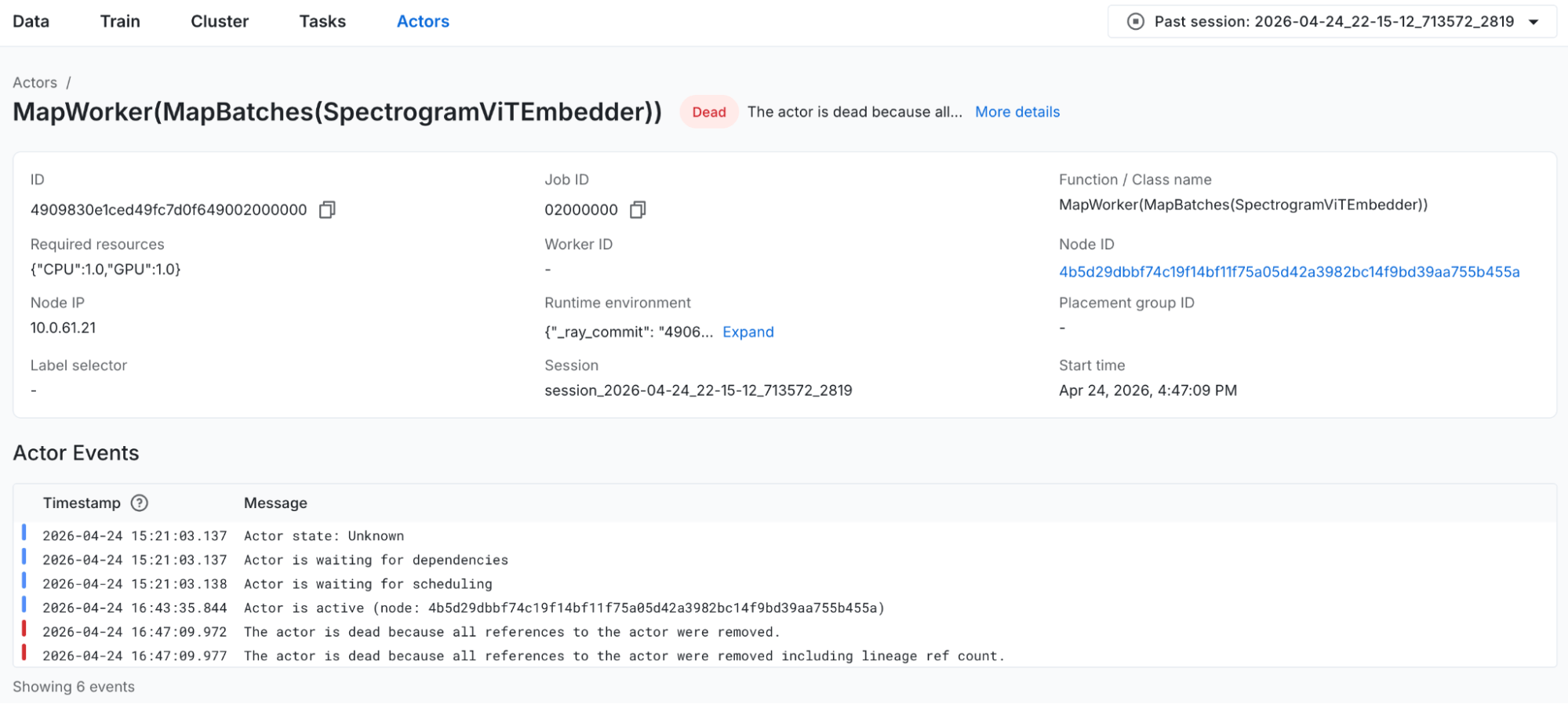 Figure 9: Actor detail page for the SpectrogramViTEmbedder actor.
The actor was waiting to schedule for over an hour. The actor wasn't failing or crashing at all; it was simply waiting for a CPU slot to open up before it could be scheduled. Once the actor was finally scheduled at 14:09, it ran for just a few minutes and successfully completed all the embedding work.
The required resources show {"CPU": 1.0, "GPU": 1.0}. The GPU was free the entire time (nothing else would have used it). So the GPU wasn't the constraint – the CPU was. The actor couldn't find a free CPU slot on the GPU node.
LinkStep 4: Cluster Dashboard - Where did the CPU slots go?
From the actor detail page, we click the Node ID link, which takes us to the node detail view in the Cluster dashboard for the GPU node (g4dn.xlarge).
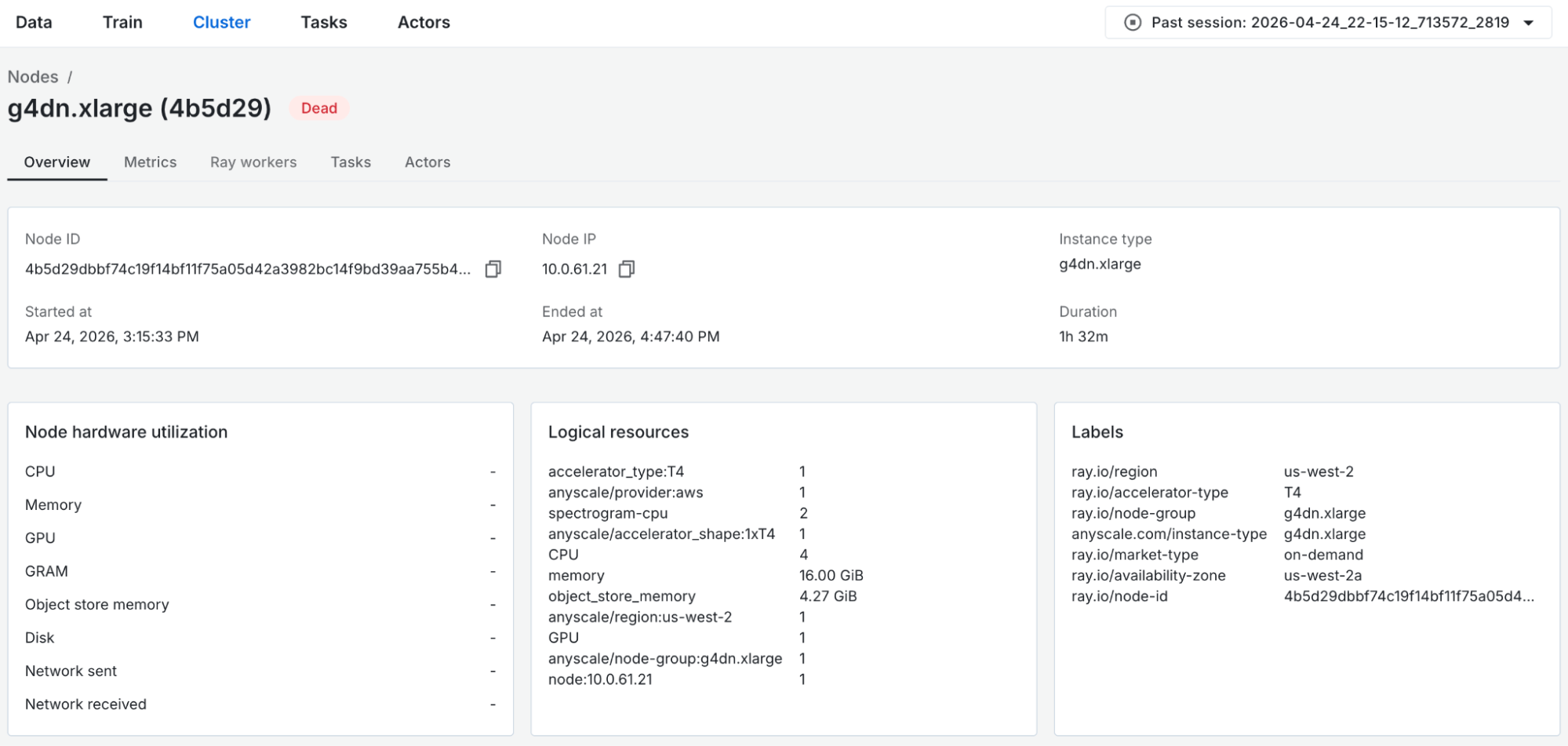 Figure 10: Node detail page for the GPU node.
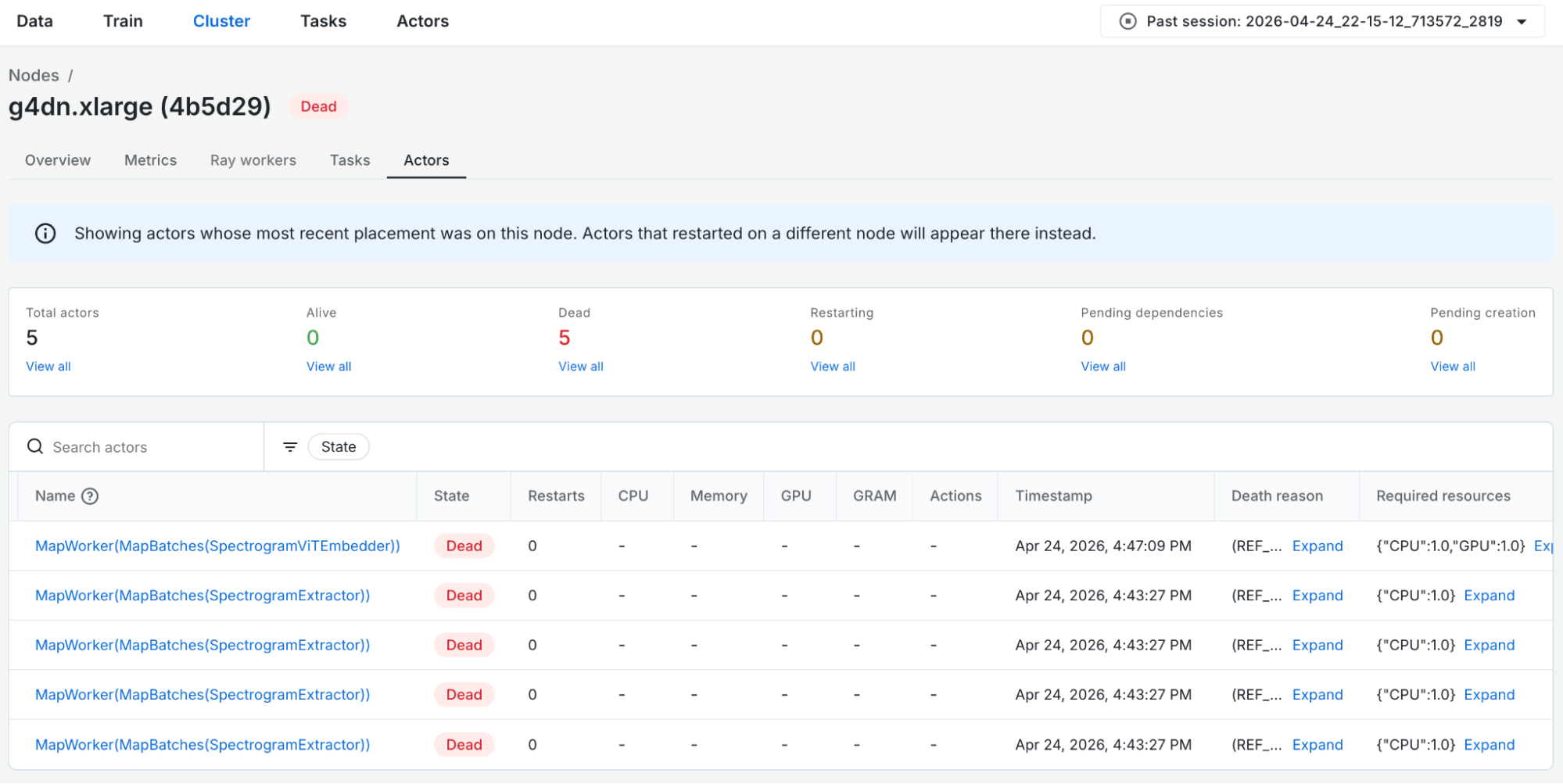 Actor table scoped to the GPU node.
The GPU node has 4 CPUs and 1 GPU, and checking the actors tab reveals exactly where things went wrong. Four SpectrogramExtractor actors had been scheduled onto this node, each claiming one CPU slot, making all four slots fully occupied. Because the embedding actor also required a CPU to launch, it had nowhere to start.
The timestamps confirm the chain of events: those 4 extraction actors were alive until ~14:09, and the moment the extraction actors finished and released their CPU slots, the embedding actor was scheduled.
From the Anyscale dashboards, we have investigated and identified the core issue: with concurrency=8 extraction actors each requesting 1 CPU, Ray distributed them evenly across available CPU slots in the cluster: four on the CPU node (8 CPUs), four on the GPU node (4 CPUs). By the time the GPU actor tried to start, there were no free CPU slots on the only node with a GPU. The embedding actor waited nearly an hour for the extraction stage to complete and release its CPU slots before it was finally scheduled on the node.
LinkThe Fix
The root cause was Ray scheduling four SpectrogramExtractor actors onto the GPU node, consuming every available CPU slot in the process and preventing the embedding actor from ever getting off the ground. There are several recommended options to fix this:
1. Reduce preprocess concurrency:
ds = ds.map_batches(
    SpectrogramExtractor,
    batch_size=32,
    compute=ray.data.ActorPoolStrategy(size=6),
)
Ray will distribute actors so that there are three on the CPU node and three on the GPU node. Then, the SpectrogramExtractor actors will consume only three out of four CPUs on the GPU node.
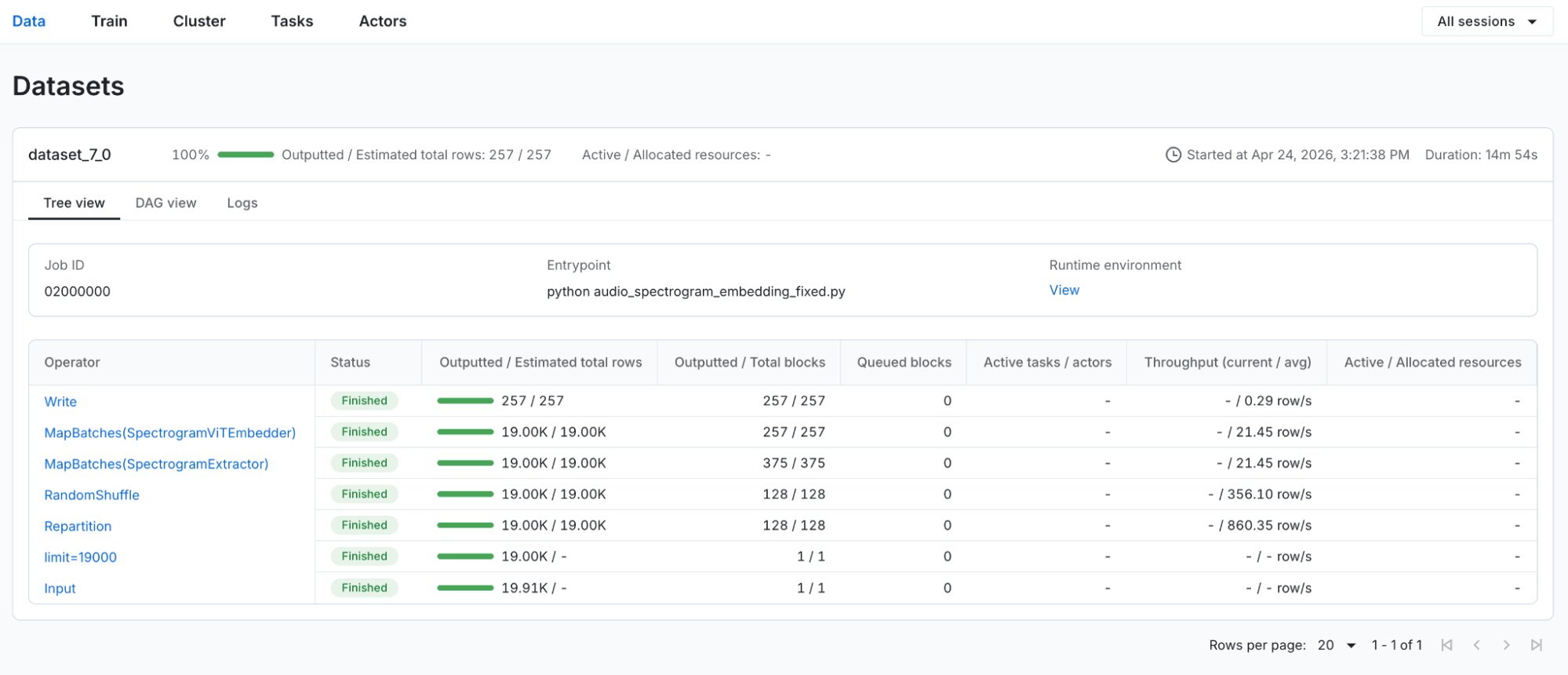 Figure 12: Data dashboard view for the fixed spectrogram embedding pipeline.
2. Use scheduling labels to separate workloads:
# In the Anyscale cluster config, label the CPU node with {"workload": "cpu-extraction"}

.map_batches(
    SpectrogramExtractor,
    batch_size=32,
    compute=ray.data.ActorPoolStrategy(size=6),
    label_selectors={"workload": "cpu-extraction"},
)
This approach explicitly pins extraction actors to the CPU node, preventing them from landing on the GPU node regardless of available capacity, so the GPU node is guaranteed to have free CPU slots. Strongest guarantee, but rigid – extraction can never use any GPU-node CPU even if it's idle.
Once placement is explicit, concurrency becomes an independent tuning knob. We keep the number of extraction actors at 6 here to leave CPU headroom for other tasks on the node, but it should be tuned for throughput.
3. Use resources to target workloads:
# In the Anyscale cluster config, add resources to the CPU node with {"extraction-cpu": 8} and to the GPU node with {"extraction-cpu": 2}

ds = ds.map_batches(
    SpectrogramExtractor,
    batch_size=32,
    compute=ray.data.ActorPoolStrategy(size=6),
    resources={"extraction-cpu": 1},
)
This sets an explicit placement budget for how many extraction actors can run on each node. CPU extraction is capped at 2 CPUs on the GPU node, leaving 2 CPUs reserved for the GPU actor. This is more flexible than labels – the GPU node can still pitch in on extraction up to a bounded amount.
LinkKey Takeaway
What makes this bug particularly tricky is that nothing looks wrong in isolation. The pipeline code is correct, the cluster has sufficient total resources, and each individual configuration choice is reasonable on its own. The problem only surfaces from the interaction between actor placement, per-actor CPU requests, and the GPU node's limited CPU capacity, which is exactly the kind of systemic issue that's nearly impossible to diagnose without proper observability tooling.
The Anyscale dashboards made post-mortem debugging not just possible but methodical. The Data dashboard identified when the embedding stage went idle, the Task and Actor dashboards explained why it stalled for nearly an hour, and the Cluster dashboard pinpointed where those CPU slots had gone. Critically, all of this analysis was available after the cluster had already shut down, with no need to reproduce the issue from scratch.
Table of contents
- Introducing Cluster and Actor Dashboards
- Debugging a Ray Data embeddings pipeline end to end
- The Pipeline
- Step 1: Data Dashboard - When did the pipeline actually produce output?
- Step 2: Task Dashboard - Why is there no Embedding progress?
- Step 3: Actor Dashboard - Why was the embedding actor delayed?
- Step 4: Cluster Dashboard - Where did the CPU slots go?
- The Fix
- Key Takeaway